
MCP server
Connect Claude, ChatGPT, Cursor, VS Code or any MCP client to Escourtly and edit your demos in plain language.
The Escourtly MCP server lets an AI assistant work on your demos with the same controls you have in the editor. Ask it to blur an email on step 3, tighten every caption, copy the login steps from one demo into another, drop the steps where you were just scrolling, switch on lead capture, or tell you which step loses the most viewers. It does the work through Escourtly, as you.
Connecting is a URL and a sign-in. There's no key to copy: your assistant opens the Escourtly sign-in page, you approve it, and it's connected.
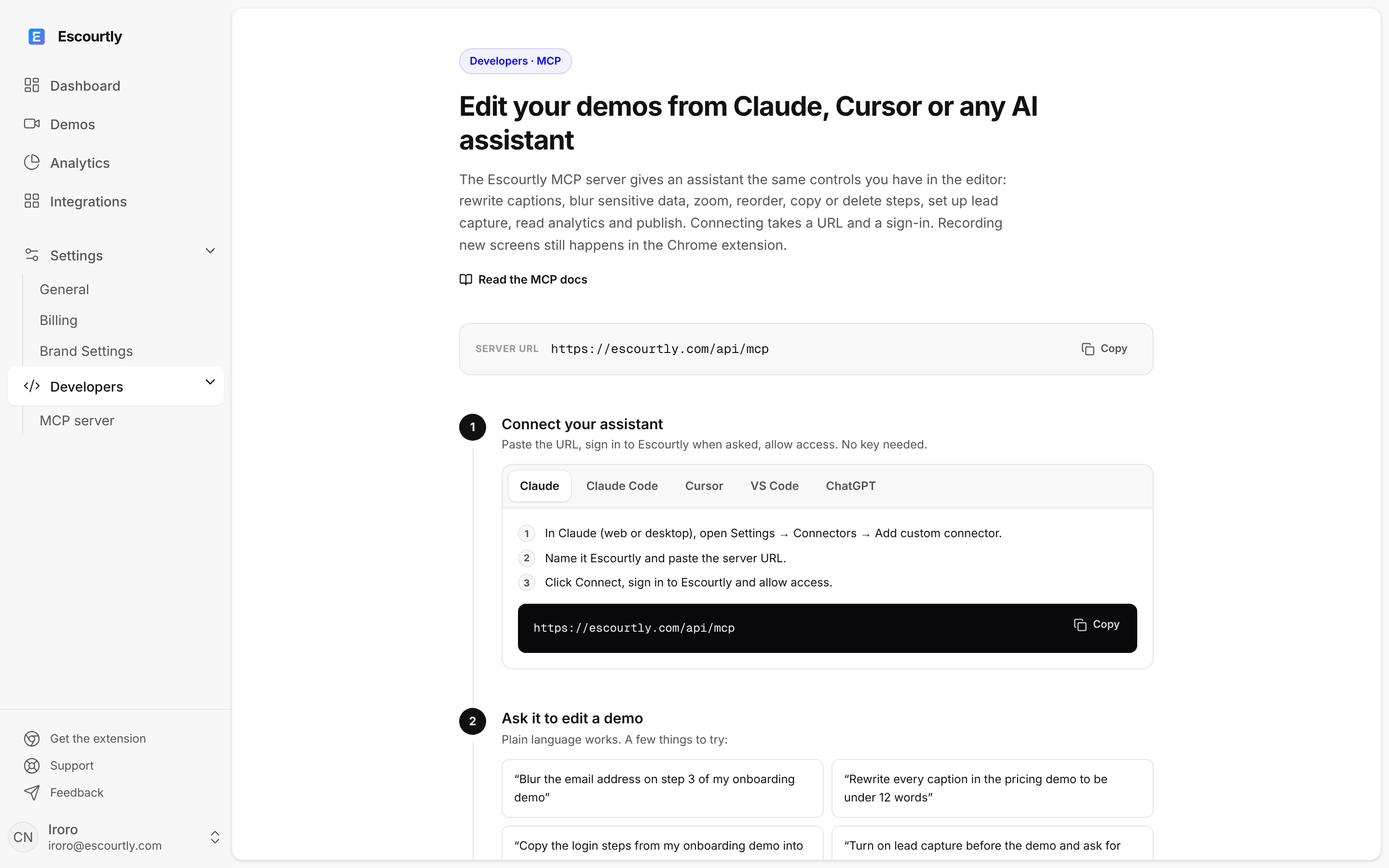
Server URL: https://escourtly.com/api/mcp
Connect your assistant
Works in Claude on the web and in Claude Desktop.
- Open Settings → Connectors → Add custom connector.
- Name it Escourtly and paste
https://escourtly.com/api/mcp. - Click Connect, sign in to Escourtly and Allow access.
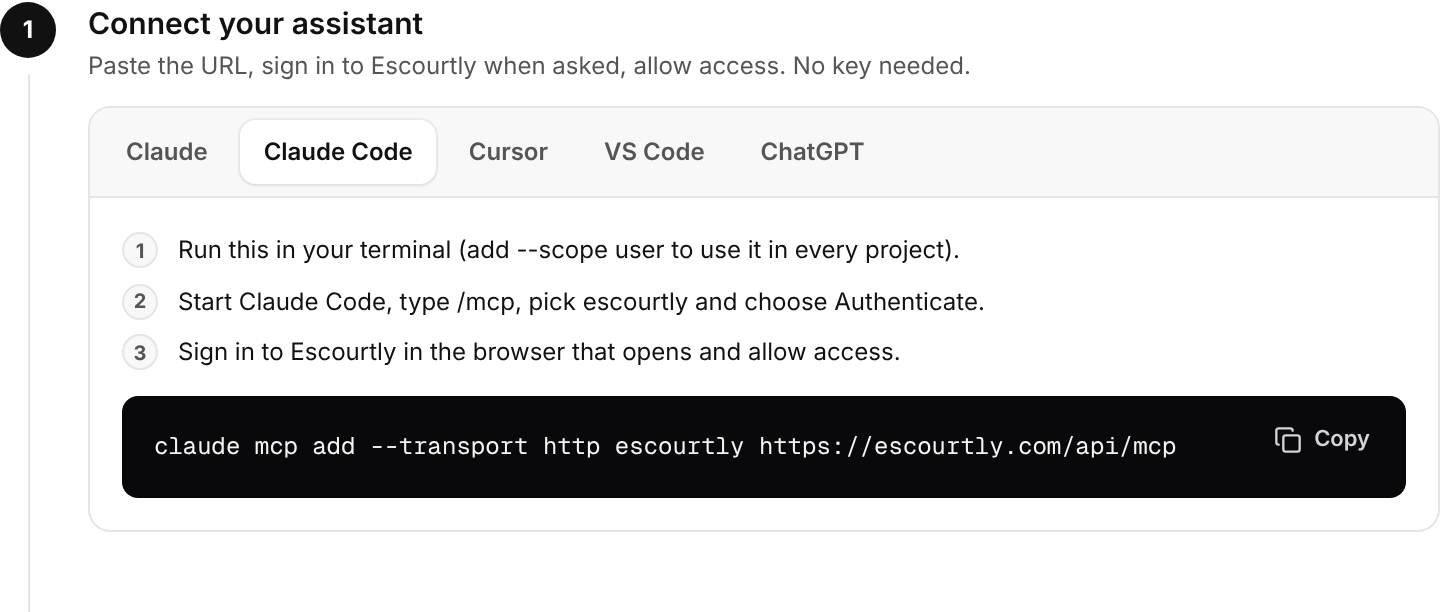
The approval screen
When your assistant connects, Escourtly shows who is asking and what it will be able to do. Nothing is shared until you click Allow access.
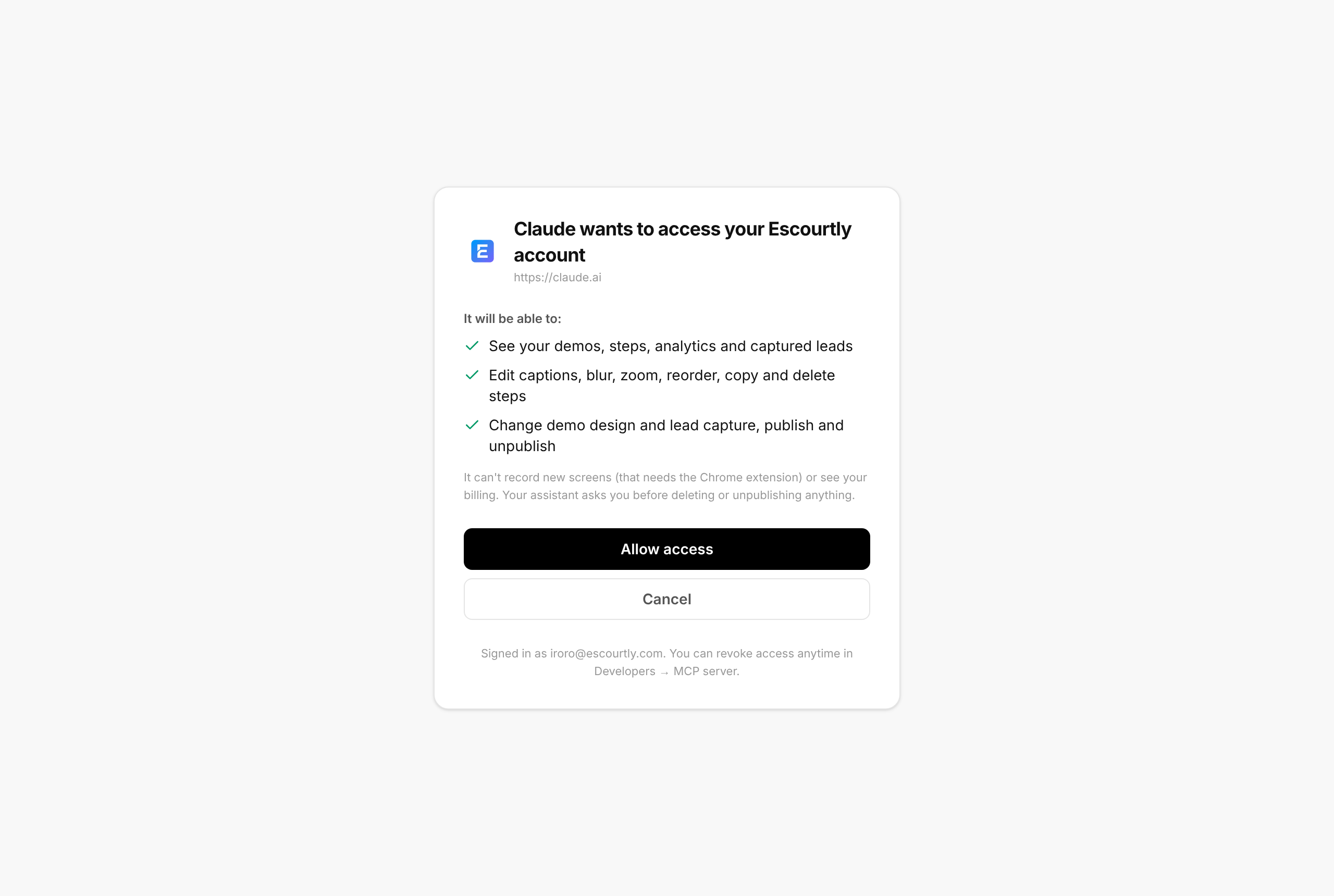
Ask for something
Start small so you can check the result in the editor:
- "List my Escourtly demos."
- "In the onboarding demo, blur the email address on step 3."
- "Copy the first three steps of my onboarding demo to the start of the pricing demo."
- "Rewrite every caption in the pricing demo to under 12 words, then show me the changes."
- "Which step loses the most viewers in my main demo over the last 30 days?"
What it can do
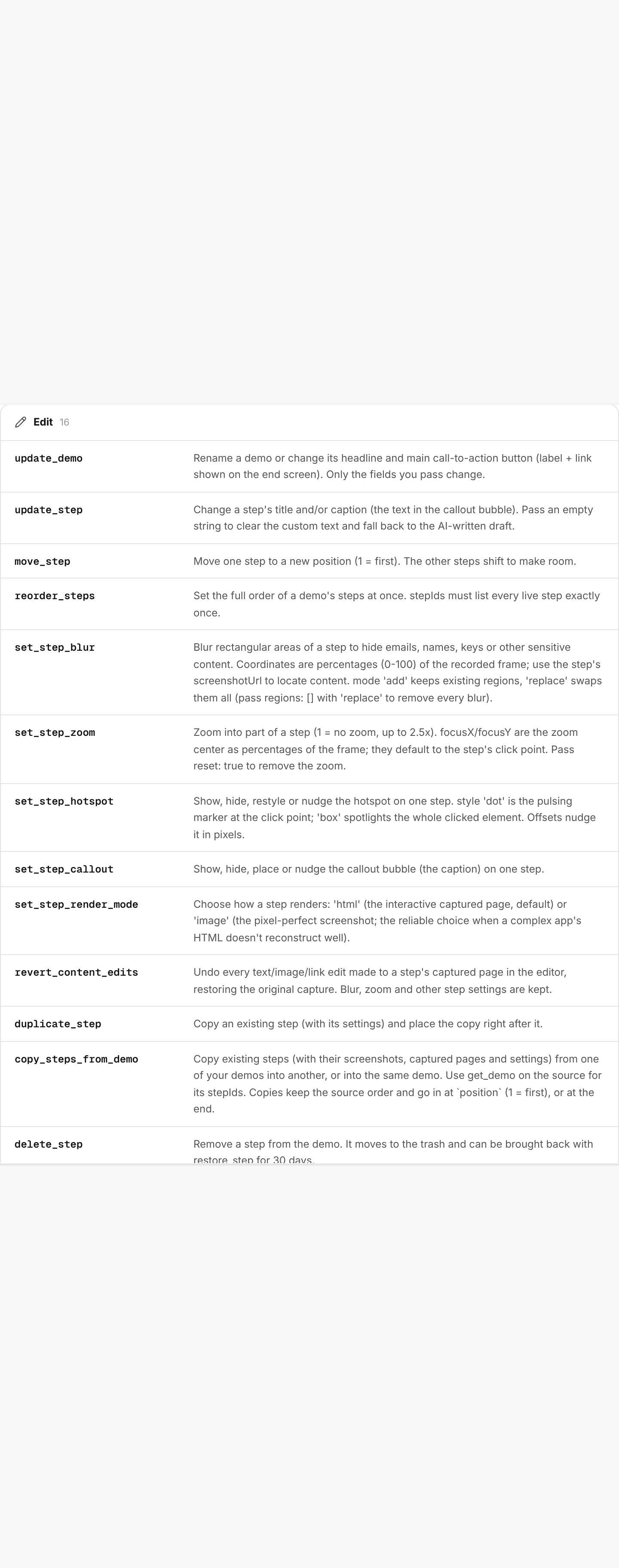
| Area | Tools |
|---|---|
| Read | list_demos, get_demo, get_demo_analytics, list_leads, list_deleted_steps |
| Demo details | update_demo (title, headline, CTA button label and link) |
| Step text | update_step (title and caption; an empty string falls back to the AI draft) |
| Step order | move_step, reorder_steps |
| Step look | set_step_blur, set_step_zoom, set_step_hotspot, set_step_callout, set_step_render_mode, revert_content_edits |
| Adding and removing steps | copy_steps_from_demo, duplicate_step, delete_step, restore_step |
| Look and lead capture | update_customization (cover, end screen, brand, callout and hotspot style, background), configure_lead_capture |
| Publishing | publish_demo, unpublish_demo, delete_demo |
How edits behave
- Edits change the draft. A published demo keeps serving its last published version until you (or your assistant) run
publish_demoagain, exactly like the editor. Tools that edit a published demo say so in their reply. - Deleted steps go to the trash.
delete_stepis reversible for 30 days withrestore_step. - Deleting a demo is permanent.
delete_demorequires the demo's exact title as confirmation, and assistants ask you before running it. - Positions are percentages. Blur boxes and zoom focus points use 0 to 100 percent of the recorded frame, the same as the editor. The assistant can open each step's screenshot to find what to blur.
- New screens come from the extension. Recording happens in your own signed-in browser, so the assistant can't capture new pages. It can add steps by copying them from another demo, duplicating, or restoring.
- Page edits stay in the editor. Changing text or images inside a captured page needs the live page, so it isn't available over MCP.
revert_content_editscan undo them.
Connected apps
Every assistant you approve is listed under Developers → MCP server → Connected apps, with when it was connected and last active. Disconnect stops it from getting new access straight away; a session already open in the app keeps working for up to an hour.

API keys (for scripts)
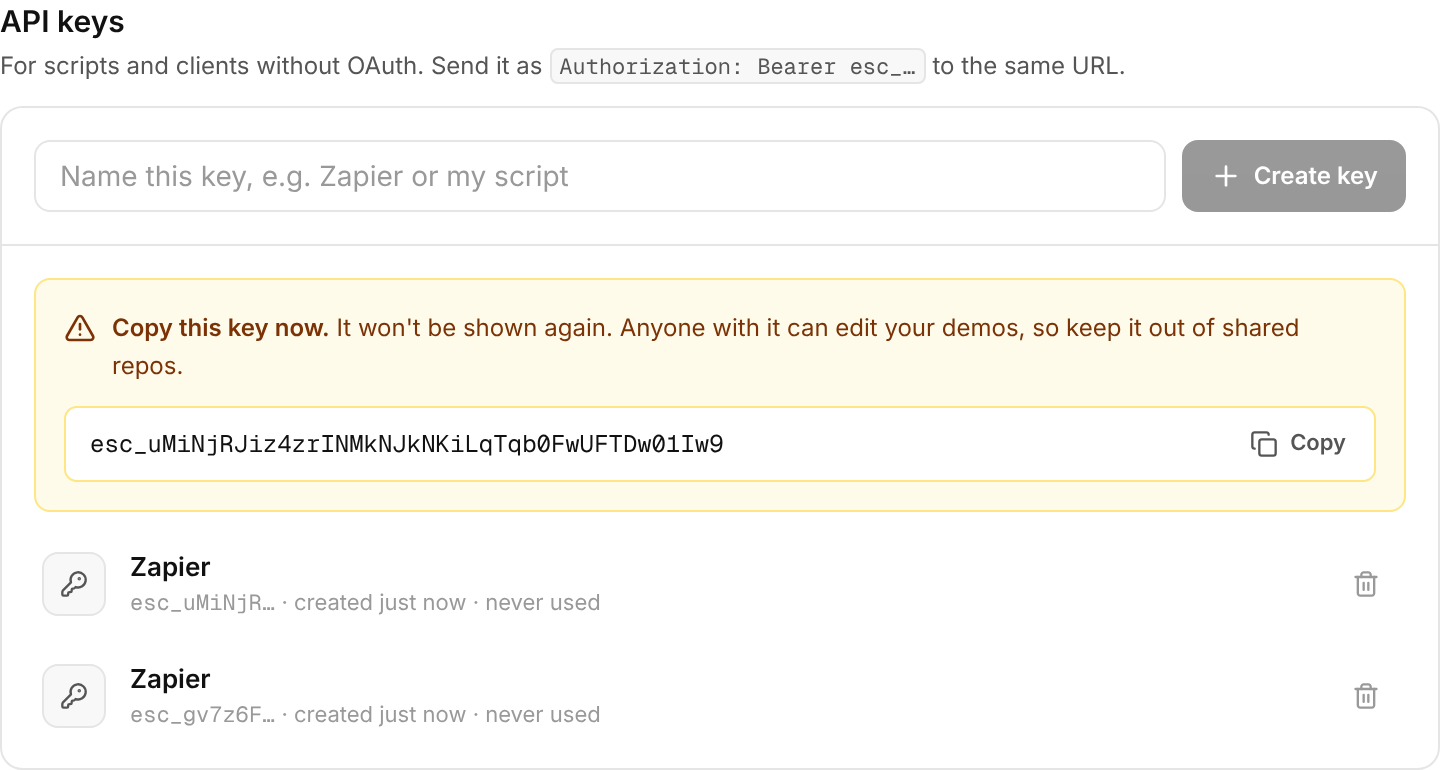
Some tools and scripts can't do an OAuth sign-in. For those, create a key under Developers → MCP server → API keys and send it to the same URL:
Authorization: Bearer esc_your_key_hereThe key is shown once and stored only as a fingerprint. Make one per tool so you can revoke one without breaking the others; revoking takes effect on the next request.
Security
- Everything runs as you. The assistant can only see and change your own demos and leads, through the same checks as the editor.
- Sign-in is standard OAuth 2.1 with PKCE. Access tokens last an hour, are bound to the Escourtly MCP server, and refresh automatically while the app stays connected.
- Your assistant asks first before tools marked as destructive (
delete_demo,delete_step,unpublish_demo,revert_content_edits). Read tools run without prompting. - Requests are rate limited to about 120 per minute per account.