
Integrations
Send every lead you capture on a demo straight to the tools you already use — a webhook, your CRM (Attio, Folk), or your email marketing (Loops).
A demo is a great top of funnel, but a lead only matters if it reaches the place your team actually works. Integrations close that gap: when a viewer submits the lead-capture form on your share page, Escourtly delivers that lead to every destination you've connected — automatically, in the background, with retries.
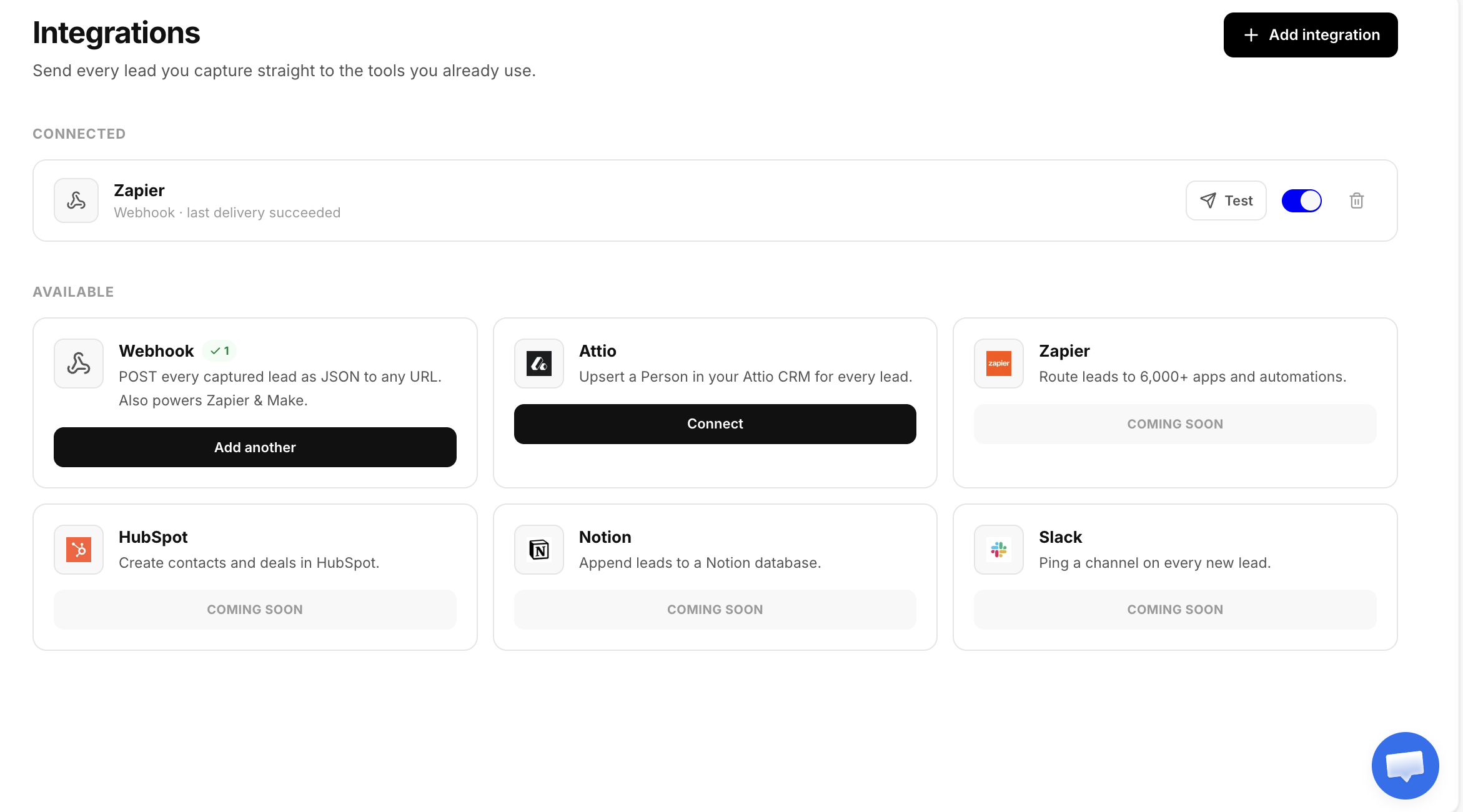
What we support today
Webhook
POST every lead as JSON to any URL. Also the way to reach Zapier and Make.
Attio
Upsert a Person — and their Company — in your Attio CRM for every lead.
Folk
Create a Person in your Folk CRM for every lead, with optional group routing.
Loops
Add every lead as a contact in Loops to nurture them over email.
More destinations (HubSpot, Notion, Slack, and others) are on the way. Any tool that accepts a webhook can already be wired up through the Webhook integration.
Turn on lead capture
Integrations deliver leads — so first a demo has to collect them. Lead capture is off by default; turn it on per demo:
Open the demo's settings
In the editor, open Demo settings → Leads.
Enable "Collect leads"
Choose when the form appears (before the walkthrough or at the end), whether it can be skipped, and which fields to collect. Email is always collected; name, company, and phone are optional.
Publish
Lead settings ship with the published demo — press Publish so the live link starts capturing.
Email unlocks the most
Company syncs to Attio using the lead's email domain, and phone formats best when present — so collecting email (always on) plus name gives every destination something useful to work with.
How delivery works
Once a viewer submits the form:
- The lead is saved first. It lands in your account before any delivery is attempted, so a destination being down can never lose it.
- It fans out to every enabled connection. Each destination is delivered independently — a failed CRM sync never blocks a webhook that already succeeded.
- Failures retry automatically. Transient problems (a timeout, a 5xx, rate limiting) back off and retry; a permanent problem (a bad token, a rejected payload) is recorded so you can see it.
- You can watch it. Every connection shows its last delivery status, and the Test button sends a sample lead on demand.
Your credentials are encrypted
Webhook URLs and API tokens are encrypted at rest and never shown again after you save them — the connection list only ever displays a label and status, never the secret.
Connect a destination
Open Integrations from the sidebar, find a destination in the Available grid, and click Connect. The per-destination guides walk through each one: