
Record your first demo
Capture a walkthrough of your product by clicking through it naturally. Escourtly handles the rest.
Recording is the only part of Escourtly that needs to happen in real time. Everything else can be fixed later in the editor, so relax: one decent take is enough.
Before you hit record
A minute of prep makes a noticeably better demo:
- Start on the right page. The first step becomes your demo's opening frame and thumbnail.
- Use realistic data. Seed your app with content that looks real. "Test test 123" undermines an otherwise great demo. If some real data slips in, you can blur it later.
- Know your route. Run through the flow once in your head: which pages, which clicks, where it ends.
- Close what you don't want captured. Toasts, dev toolbars, and notification popups will be in the snapshot if they're on screen when you click.
Recording
Open your product and start
Go to the page where your demo should begin, click the Escourtly icon, and press Start recording.
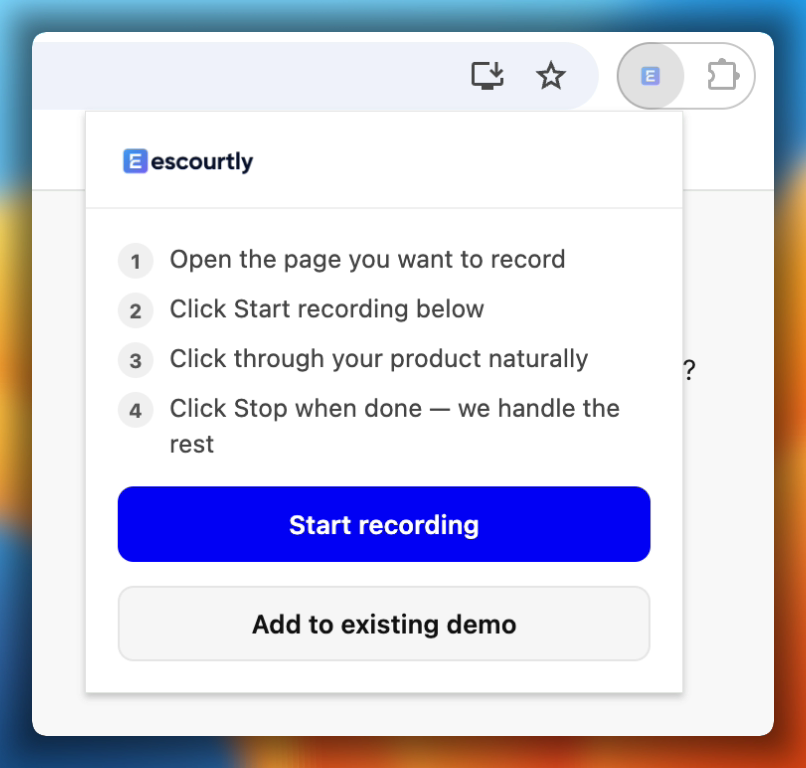
Click through your flow
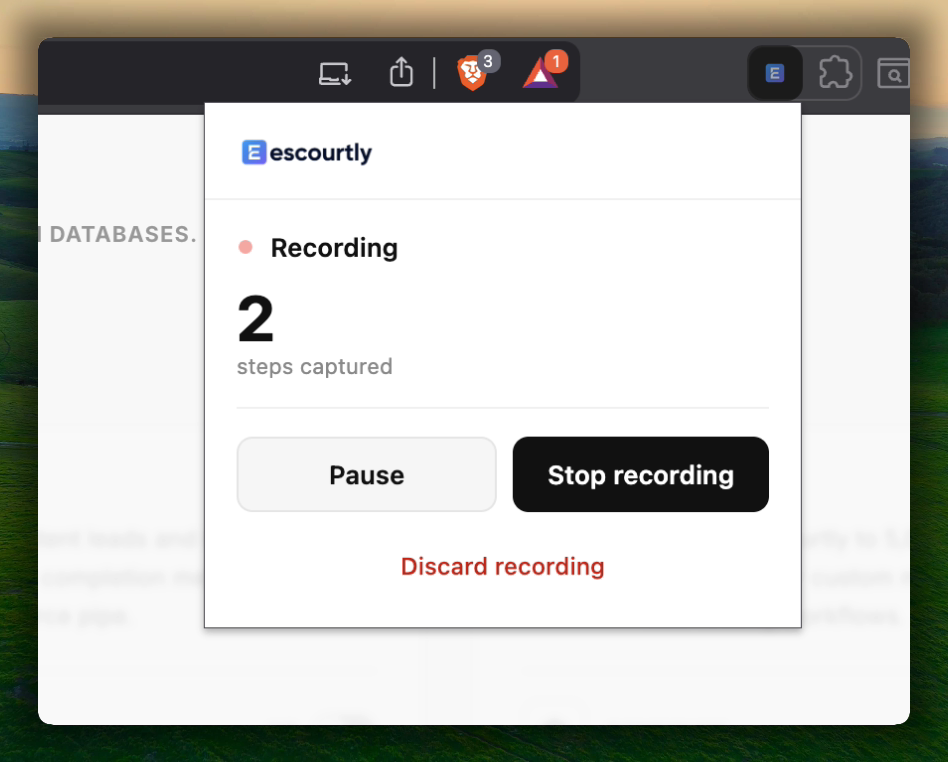
Use your product like you normally would. Every click is captured as a step: the page snapshot, your click position, and the element you clicked. A small counter shows the running step count.
Navigating to a new page is fine. Escourtly follows you and keeps recording; multi-page flows are fully supported.
Pause if you need to
Need to set something up mid-recording without capturing the clicks? Open the popup and hit Pause, do your thing, then Resume. Paused clicks are not recorded.
Stop and upload
When the flow is complete, open the popup and press Stop. Your steps upload to Escourtly, AI writes a first draft of every step's heading and description, and the editor opens automatically in a new tab.
Your recording is safe by design
Captured steps are saved on your machine the instant they happen. Page navigations, closing the popup, or even the recorded tab crashing won't lose them. If an upload fails (bad hotel wifi, for example), the extension keeps everything and lets you retry. Steps are only ever discarded when you explicitly press Discard.
Good to know
- False start? Press Discard in the popup to throw the recording away and start fresh. It asks for confirmation first.
- Some pages can't be recorded. Chrome blocks extensions on browser pages (chrome://), the Chrome Web Store, PDFs, and local files. The extension tells you instead of failing silently.
- Fast clickers welcome. Chrome limits how fast screenshots can be taken; if you click quicker than that, Escourtly still captures the step and simply reuses the page snapshot for it. Nothing is lost.
- Don't worry about mistakes. A wrong click can be deleted in the editor. A missed step can be added later without redoing the take.
Next: your demo is now a draft in the editor. Time to publish and share it, or take a detour through the editor tour first.