
Adding steps
Four ways to add steps to a demo without re-recording it, plus the step trash that makes deletion reversible.
A missing step is the most common reason people re-record a demo. In Escourtly it should be the least: the + Add step button at the bottom of the step list offers four ways to grow a demo, and deleted steps stay restorable for 30 days.
Duplicate current step
Select a step, then choose Duplicate current step. An identical copy appears right after it: same snapshot, same annotation, same settings, ready to be edited independently.
Use it when one screen deserves two beats, for example one step highlighting a button and the next explaining the result, or as raw material you edit into something new.
From this recording (the trash)
Every step you delete moves to the demo's trash instead of vanishing. From this recording shows everything in the trash with thumbnails; click Restore and the step rejoins the demo at the end, annotations and settings intact. Drag it into position afterwards.
Trash rules:
- Deleted steps stay restorable for 30 days, then they're permanently removed.
- Restoring is instant and unlimited within that window.
- The trash is per demo.
Deleting is now a safe operation
Not sure whether a step earns its place? Delete it and watch the demo without it. If it was load-bearing, restore it. This is much faster than debating with yourself in advance.
From another demo
From another demo copies steps between your demos. Pick the source demo, select any steps from its thumbnail grid, and copy. The steps are added at the end of the current demo as fully independent copies: editing or deleting them never affects the source demo.
Great for:
- Reusing an intro or outro you've already polished (login flow, dashboard establishing shot).
- Assembling a custom demo for a specific prospect out of steps from several recordings.
- Migrating the good parts of an old take into a new one.
Record more steps
For steps that don't exist in any recording yet, capture them fresh and append them, without touching the existing demo:
Open the page you want to capture
In another tab, navigate to where the missing part of the flow lives.
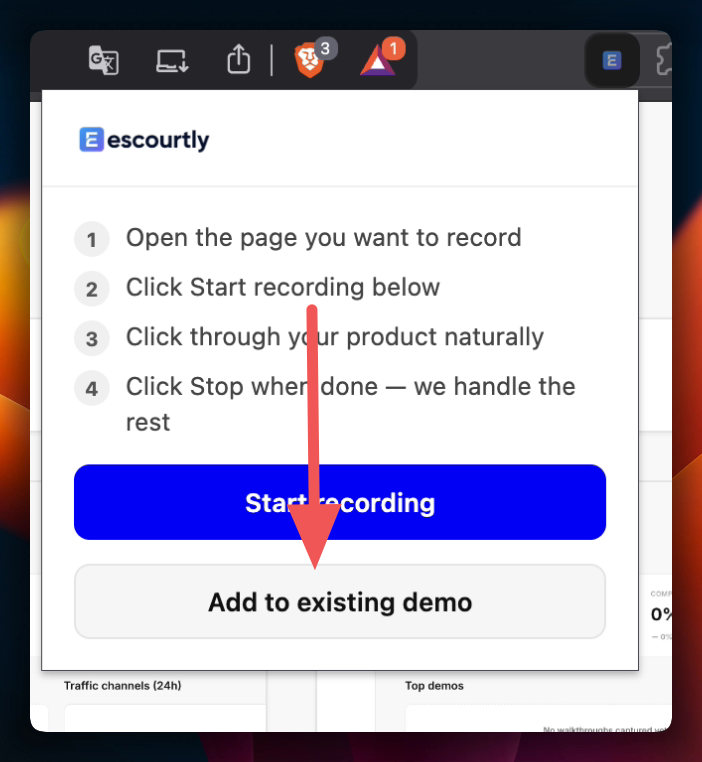
Choose "Add to existing demo" in the extension
Click the Escourtly icon and pick Add to existing demo instead of Start recording. Your recent demos are listed; choose the one you're extending.
Record and stop
Record exactly like normal. When you press Stop, the new steps upload and are appended to the end of the chosen demo, and AI describes just the new ones.
Reorder in the editor
Reload the editor tab, then drag the appended steps wherever they belong in the flow.
Which one do I want?
| Situation | Use |
|---|---|
| Same screen needs another beat | Duplicate current step |
| Deleted something I now miss | From this recording |
| Another demo already has this step | From another demo |
| The step was never recorded | Record more steps |